




Overview
This article provides step-by-step methods to help you quickly locate and open the Projects Folder on your Windows PC. By following these instructions, you can access your saved project files directly from your desktop environment, making it easier to manage, update, or share system configurations as needed.
Before You Begin
Ensure you have access to the PC where the software is installed. Administrative privileges are not typically required to open the Projects Folder.
Method 1: Using Advanced Matrix Programmer
-
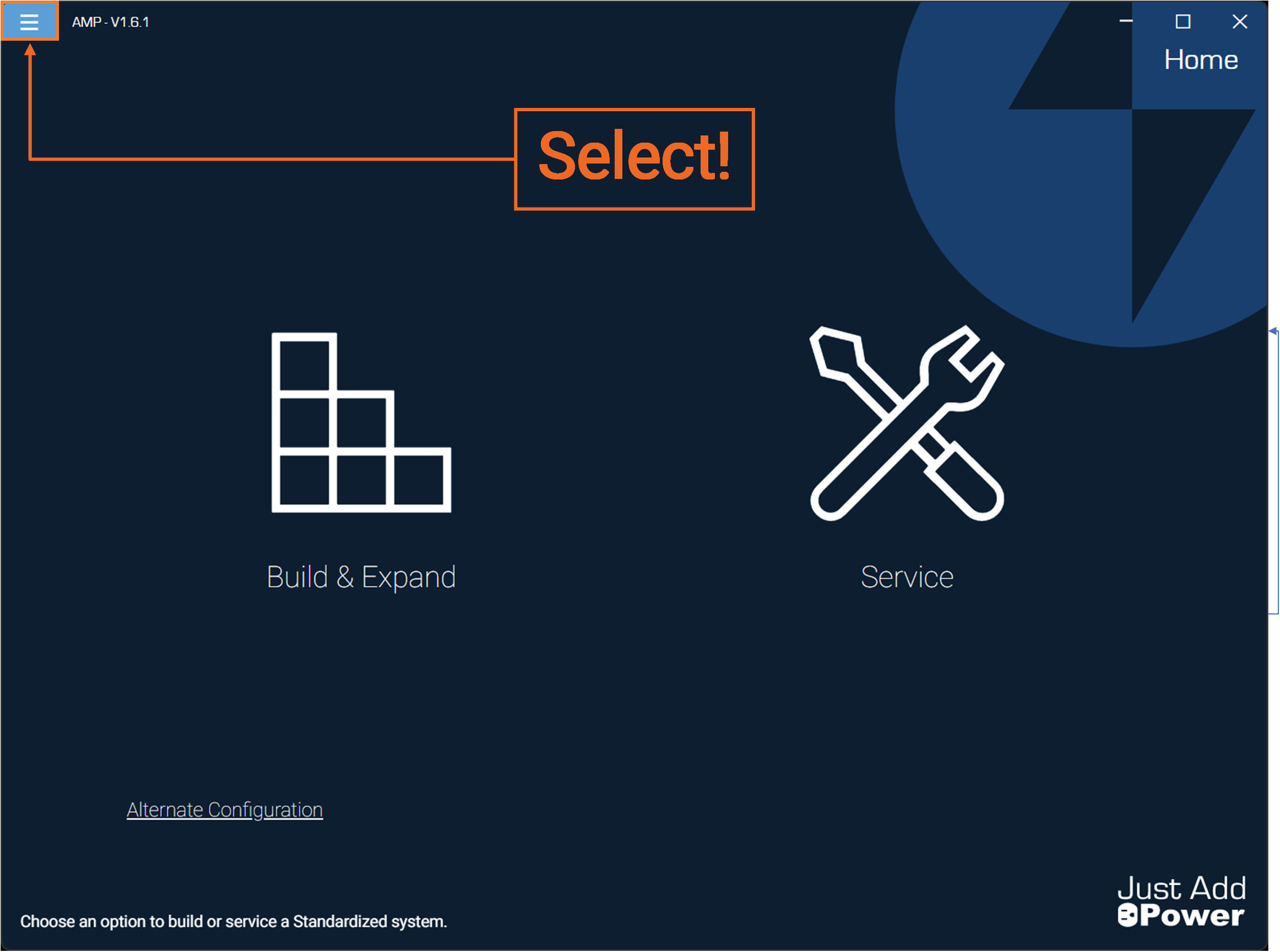
Open Advanced Matrix Programmer and select the "hamburger menu" button in the top-left corner.
-
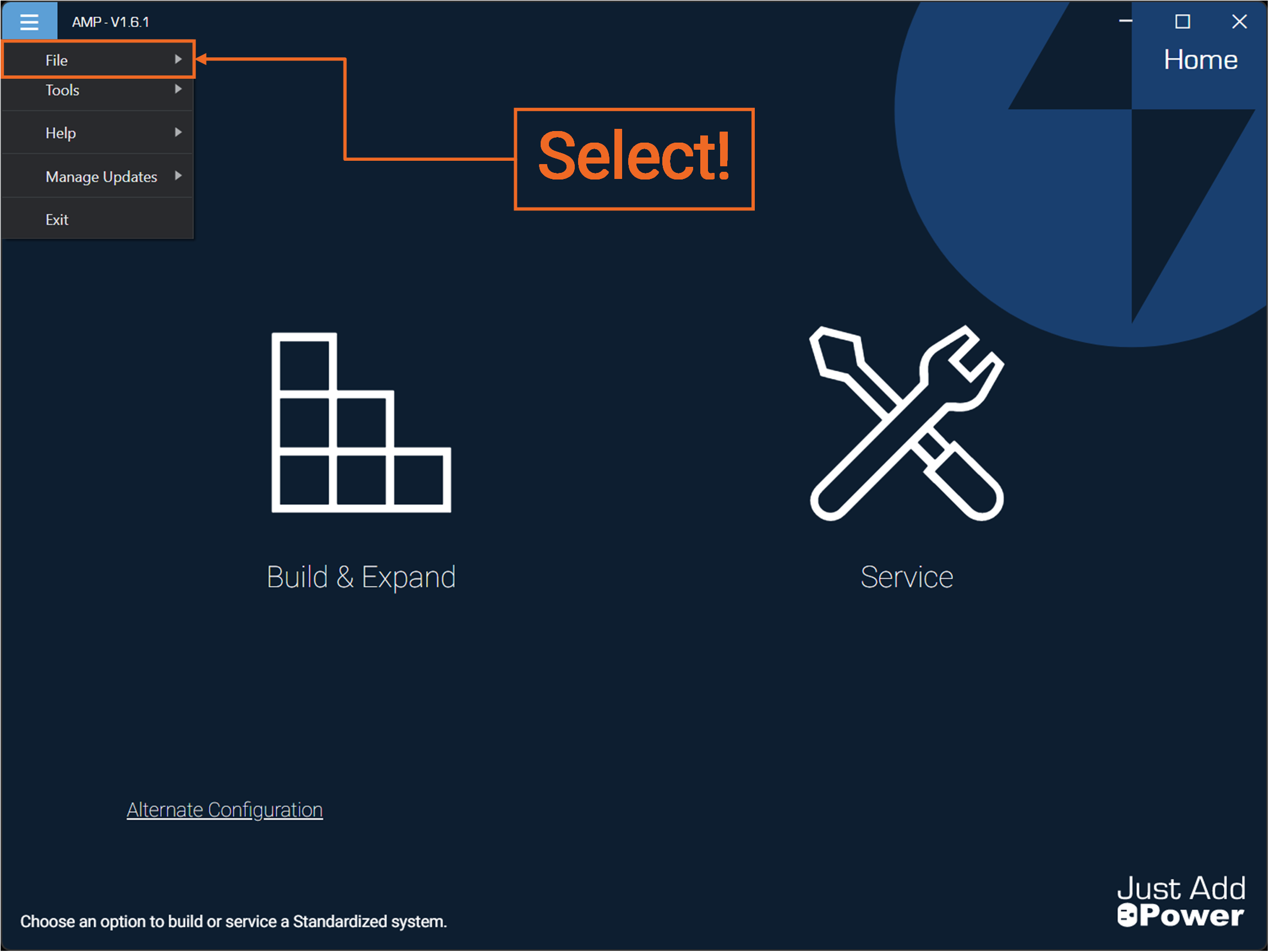
Select "File"
-
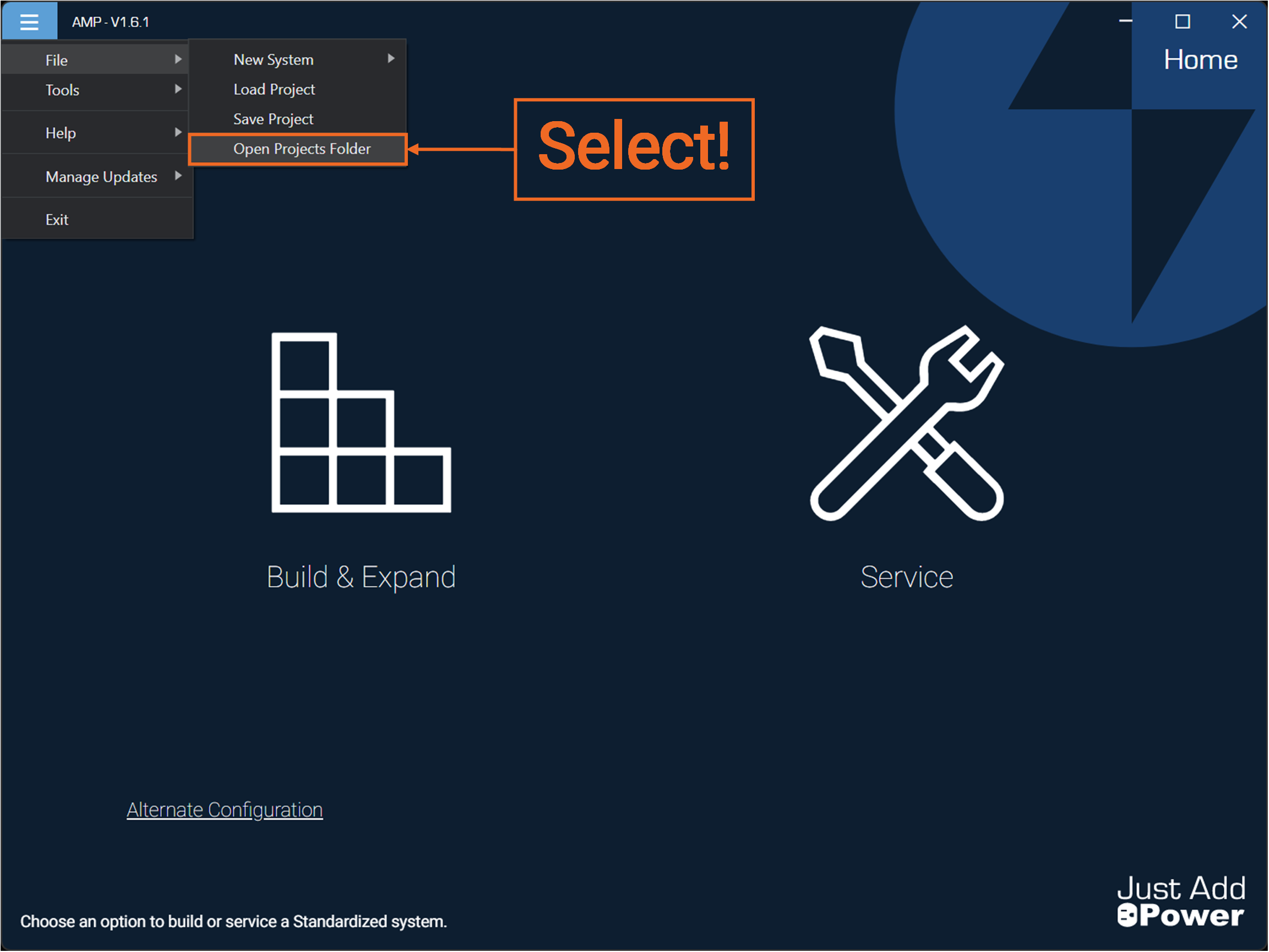
Select "Open Projects Folder"
-
Done!
Method 2: Using File Explorer
-
Open File Explorer.
- Click the folder icon on the taskbar, or
- Press
Windows Key + E
Navigate to the following directory:
C:\Users\[YourUsername]\Documents\Just Add Power\AMP\Projects-
Double-click the Projects folder to open it.
-
Done!
Troubleshooting
- Folder Not Found: The Projects Folder may not exist until a project has been created. Launch the application and create or save a project to generate the folder.
- Different Location: If the folder was moved or redirected, check with your system administrator or search the PC for Projects.
- Access Issues: Ensure your user account has permission to access the Documents directory.

