




Overview
USB Hotkey is a MaxColor feature that allows a USB keyboard or mouse connected to a MaxColor Decoder (MC-RX2 or MC-USB) to control Just Add Power system functions.
With USB Hotkeys, a single keypress can switch sources, build a video wall, power displays on or off, or change a Tiler layout.

Supported Hardware
USB Hotkey is supported on the following MaxColor hardware:
- MC-RX2
- MC-USB (Client Mode / Decoder)
Supported Firmware
USB Hotkey support begins with firmware version MAX v4.3.0.
How USB Hotkeys Are Triggered
USB Hotkeys are activated by holding one or more modifier keys (Ctrl, Alt, Shift, Meta, or none) and then double-tapping the configured hotkey.
Example: Hold Alt and double-tap 1 to execute the configured action.
Keyboard and Mouse Hotkeys
Each MaxColor Decoder supports multiple keyboard and mouse hotkeys, allowing several system actions to be triggered from a single input device.
-
Up to 8 keyboard hotkeys
-
Up to 2 mouse hotkeys using the Back and Forward mouse buttons
(Mouse4 and Mouse5)

Setup USB Hotkeys
Once supported hardware and firmware are confirmed, USB Hotkeys are configured directly from the MaxColor Decoder webUI.
- Log in to the webUI of the MaxColor Decoder.
-
Navigate to the Comms tab and locate the
USB Settings card.

-
Enable USB Hotkeys to reveal the hotkey configuration options.

-
Enable Keyboard Hotkey 1 and configure the key and modifiers:
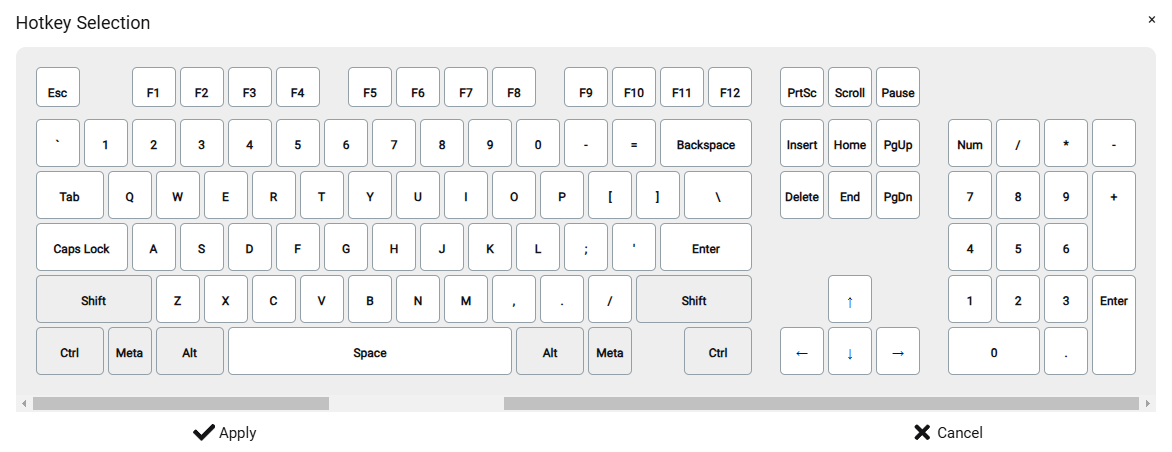
- Click the Key field to open the keyboard selector. Capital and lowercase letters are treated the same. Number row and numpad keys are different.
- Select one or more Modifiers. If multiple modifiers are selected, all must be held simultaneously.
-
In Action, enter the command to execute when the hotkey is triggered.
Multiple commands can be chained using a semicolon
;.
Example:jpsw -r4 -t1;usb connectswitches Decoder 4 to Encoder 1 and then connects KVM pass-through.

- Repeat the previous step for additional keyboard and mouse hotkeys.
-
Click Apply at the bottom of the page.

- Save the configuration and Reboot the Decoder.
- Connect a keyboard or mouse and begin using USB Hotkeys.
Example: Switching Sources with a Keyboard
This example shows how USB Hotkeys can be used to switch between Encoders using a keyboard connected to a MaxColor Decoder.
-
Configure the following hotkeys in the MaxColor Decoder webUI:
- Alt + Up Arrow →
switch up - Alt + Down Arrow →
switch down
- Alt + Up Arrow →
- Apply, Save, and Reboot the MaxColor Decoder.
- Connect a keyboard to the MaxColor Decoder.
-
Use the configured hotkeys:
- Hold Alt and double-tap Up Arrow to switch to the next Encoder.
- Hold Alt and double-tap Down Arrow to switch to the previous Encoder.


