


How to Telnet to a Device (Omega, Ultra, and MaxColor Series)
Overview
Telnet provides direct command-line access to Just Add Power devices for troubleshooting, diagnostics, and advanced configuration tasks. This method is commonly used by technical support personnel and installers when accessing system logs, running diagnostic commands, or applying configuration changes not available through the webUI.
This article explains how to establish a Telnet session to a Just Add Power device using PuTTY.
Before You Begin: You must know the IP address of the target device and have network access to it. For instructions on locating a device IP address and establishing access to a local or deployed system, see How to Access a Device (Omega, Ultra, and MaxColor Series).
Requirements
A Windows computer connected to the same network as the Just Add Power device.
The IP address of the target device.
PuTTY installed on the computer.
If PuTTY is not installed, it can be downloaded from the official website:
Connect Using PuTTY
-
Launch PuTTY.
In the Host Name (or IP address) field, enter the IP address of the Just Add Power device.
Select Telnet as the connection type.
Verify that the Port is set to 23.
Click Open.
A terminal window will open and connect to the device.

Verify Connection
After connecting successfully, the terminal window will display a command prompt similar to the example below:
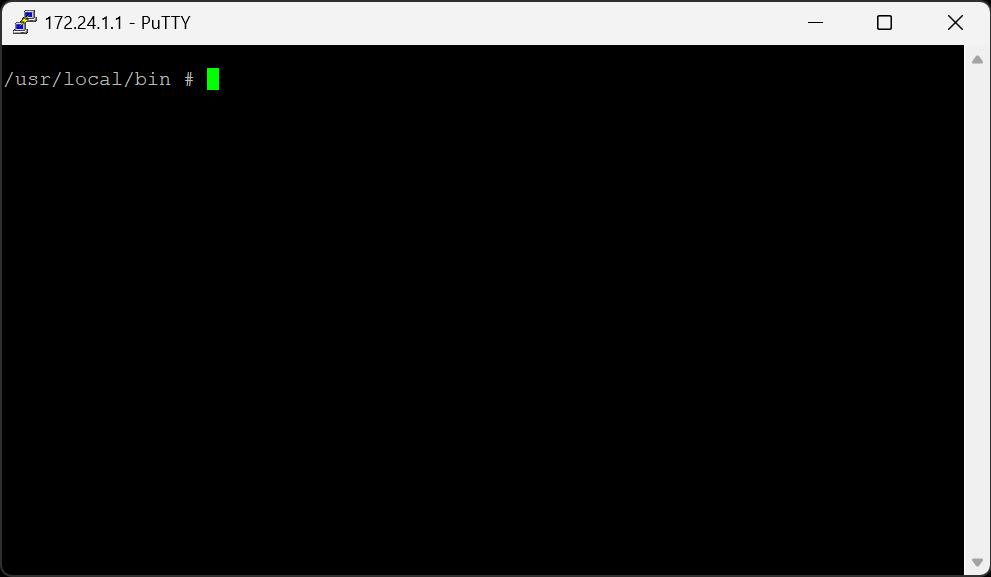
You can now enter supported commands and press Enter to execute them.
Common Uses
Telnet access is commonly used for:
Viewing device logs and diagnostic information.
Running troubleshooting commands provided by Just Add Power Support.
Verifying network and device configuration settings.
Executing maintenance or recovery procedures.
Disconnecting
To end the Telnet session, close the PuTTY window or enter the exit command.

