


Overview
When video is unavailable, a Just Add Power Decoder may display a status message on its Diagnostic Screen. Read the message in the bottom-left corner to find the relevant checks below. Some messages appear briefly during startup, source changes, or device operations.
The examples below show a MaxColor Series Diagnostic Screen. Device details appear in the bottom-right corner. The version, IP addresses, and MAC address in the images are examples; record the values shown by the affected Decoder.
Encoder IP on the Diagnostic Screen: This field shows the Encoder IP address the Decoder was last connected to before the error appeared. It does not confirm a current connection. The field may show UNKNOWN if the Decoder starts without a previously connected Encoder IP address, such as on its first boot. Use the control system or system documentation to confirm which Encoder should currently be selected.
| Diagnostic Screen message | Start here |
|---|---|
| Searching for Encoder... | Confirm that the selected Encoder is installed and discoverable. |
| Encoder Found. Connecting... | Check the Encoder and Decoder settings and their network connection. |
| Services started... | Allow the Decoder to finish starting. |
| Network Link to this Decoder is Down | Check the Decoder’s network cable and switch port. |
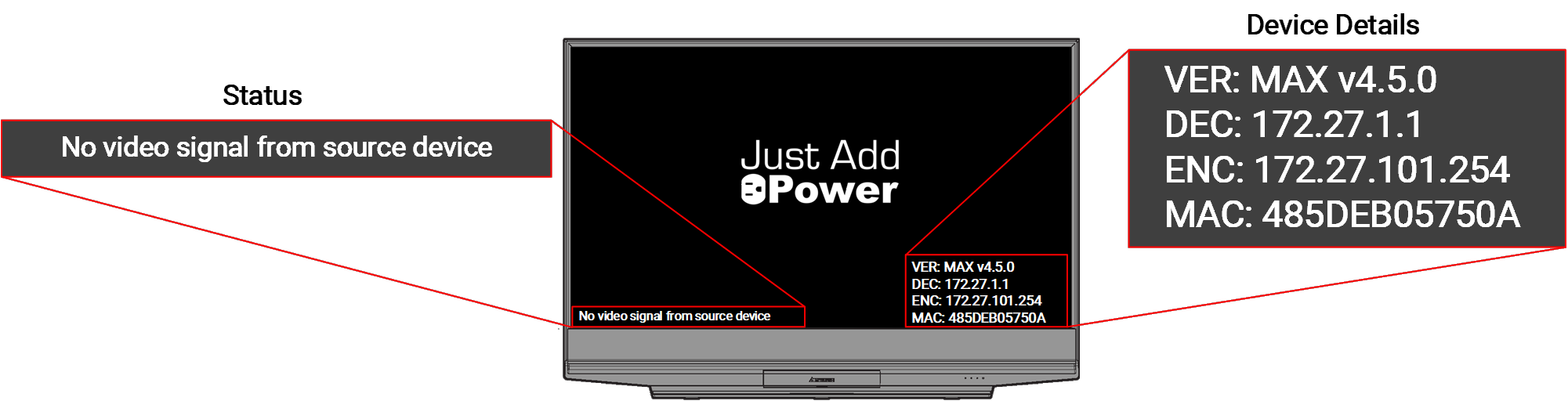
| No video signal from source device | Check the source, HDMI connection, and Encoder. |
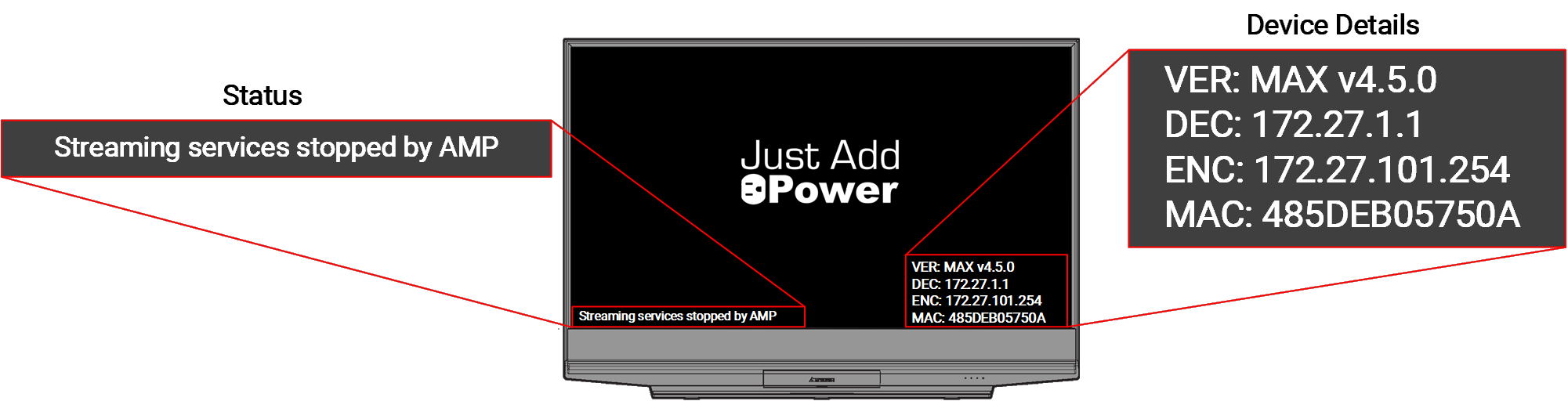
| Streaming services stopped by AMP | Check the operation running in AMP. |
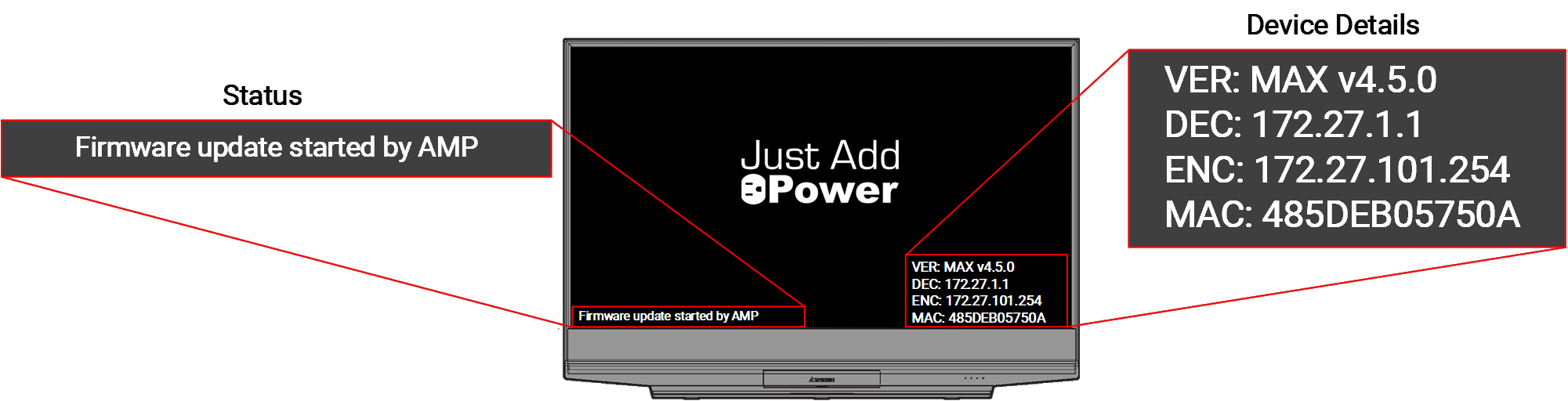
| Firmware update started by AMP | Monitor the firmware update in AMP. |
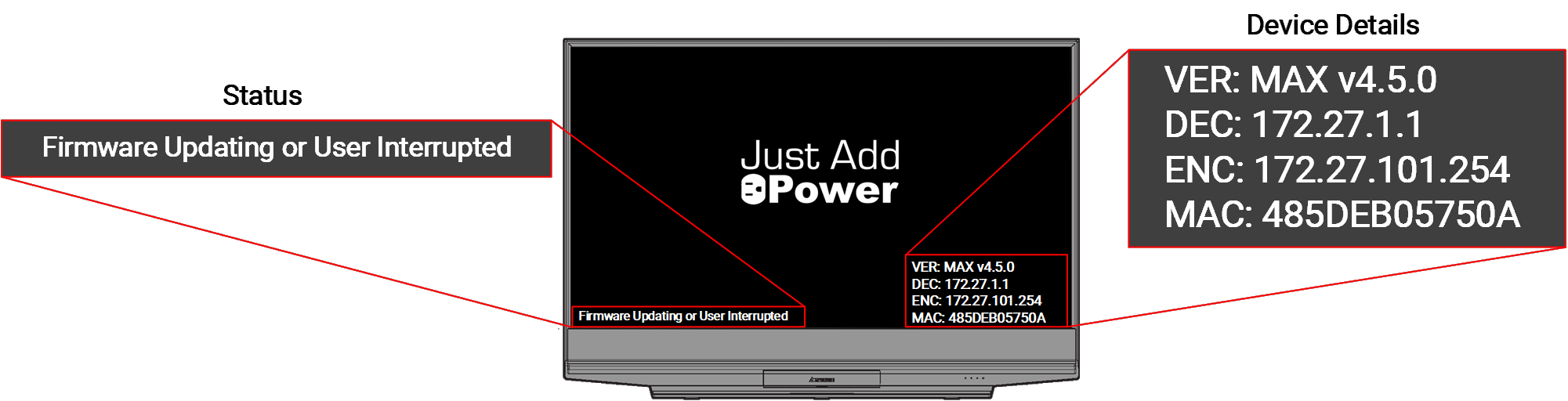
| Firmware Updating or User Interrupted | Check for a firmware update outside AMP or a command that interrupted services. |
Encoder Connection Messages
Searching for Encoder...
The Decoder is looking for its selected Encoder. This message may appear briefly after startup or a source change. If it remains on screen:
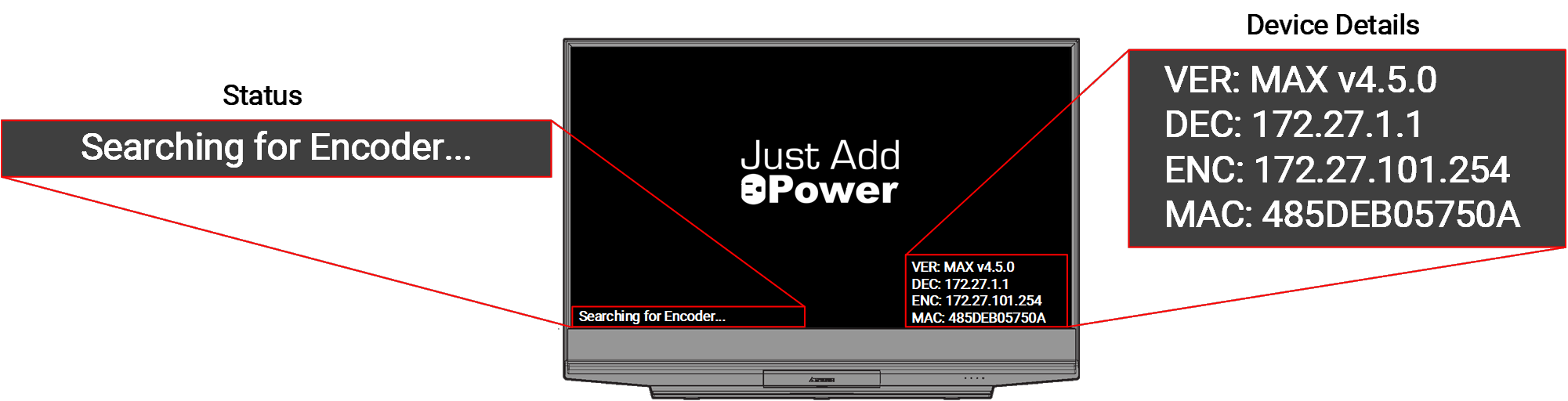
- Confirm which Encoder the control system has selected and that the position is assigned to an installed Encoder. Do not identify the current selection from the Diagnostic Screen’s Encoder IP field alone.
- In AMP, select Service, then Gather Details. Check whether the selected Encoder and affected Decoder are discovered. Compare their assignments, IP settings, models, and firmware information with the system documentation and known-working devices. See Gather Details with AMP.
- Check the Encoder’s Power and Data LEDs and its switch-port link. Confirm that it is connected to its assigned port. See Understand Power and Data LED Behavior.
- Check that the Encoder’s firmware is compatible with its model, operating mode, and the other devices in the system. Devices from different series do not necessarily use the same firmware version number.
If these checks do not identify the issue, continue to Further Connection and Video Checks.
Encoder Found. Connecting...
The Decoder has found the selected Encoder but has not completed its connection. This message may appear briefly during startup. If it remains on screen:
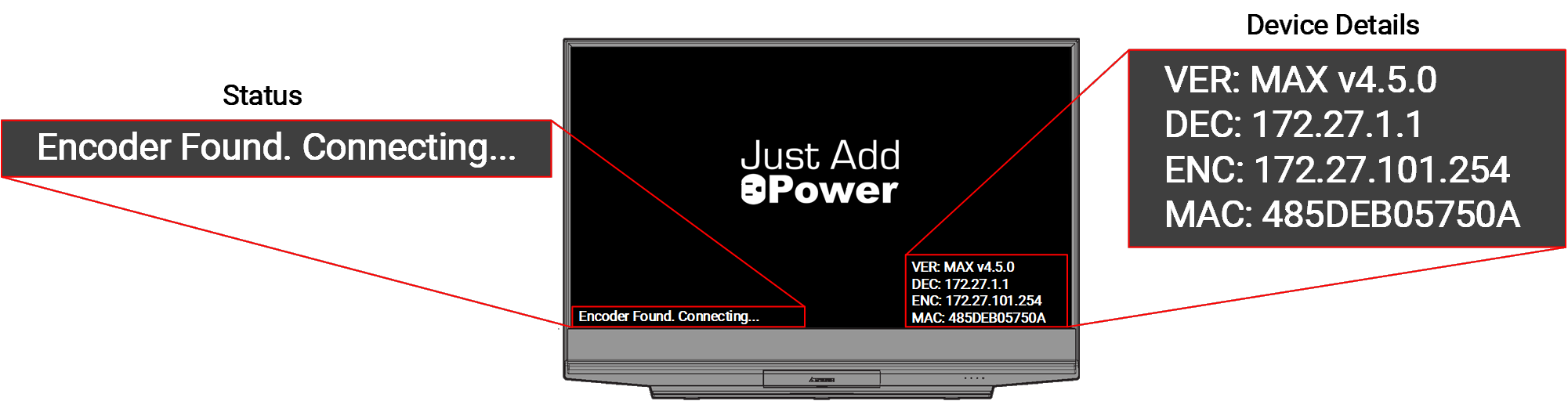
- Use AMP Gather Details to compare the Encoder and Decoder assignments, IP settings, models, and firmware information with the system documentation and known-working devices.
- Check both devices’ Power and Data LEDs and switch-port links. Confirm that their connections and port assignments match the system configuration.
- Check that their firmware and operating modes are compatible. If the devices are on different switches, check the network path between those switches.
Continue to Further Connection and Video Checks if the connection does not complete. This message concerns device connectivity; check the video signal separately after the connection succeeds.
Services started...
This message indicates that the Decoder has started its services during startup. Allow the Decoder to finish starting.
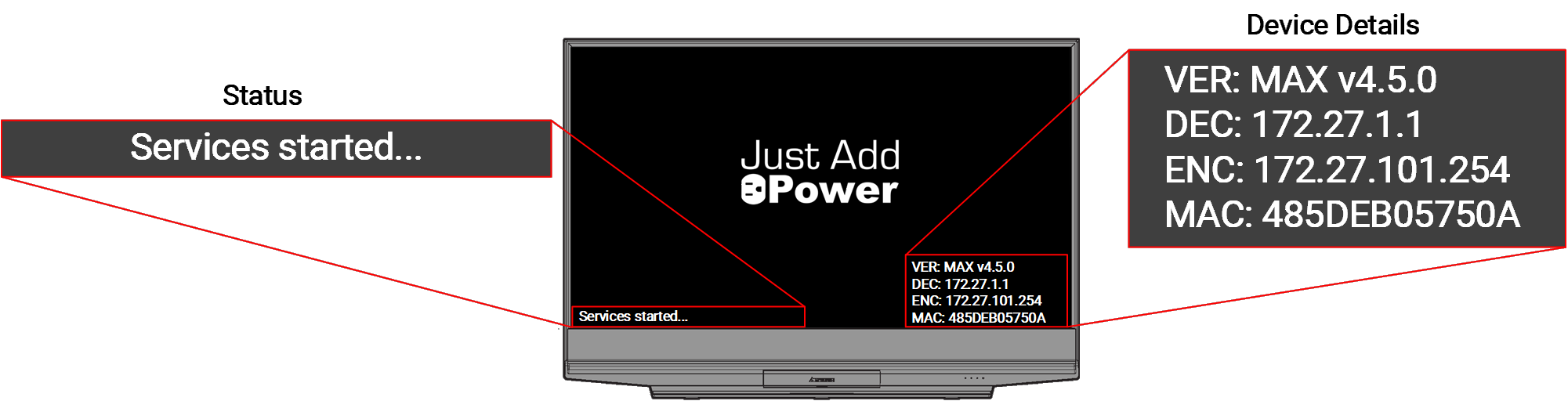
If the message remains and video does not appear, record how long it has been displayed. Use AMP Gather Details to check whether the Decoder is discovered and compare its network settings and firmware information with the system documentation. Check its Power and Data LEDs and switch-port link. If those checks do not identify the issue, confirm that AMP is not performing an operation on the Decoder, then power cycle it and allow it to finish starting. If the issue remains isolated to that Decoder, perform a Device Swap Test.
Network Link to this Decoder is Down
The Decoder does not have an active network link. A PoE-powered Decoder may still receive power while its data link is down. Restore the link before attempting to switch sources.
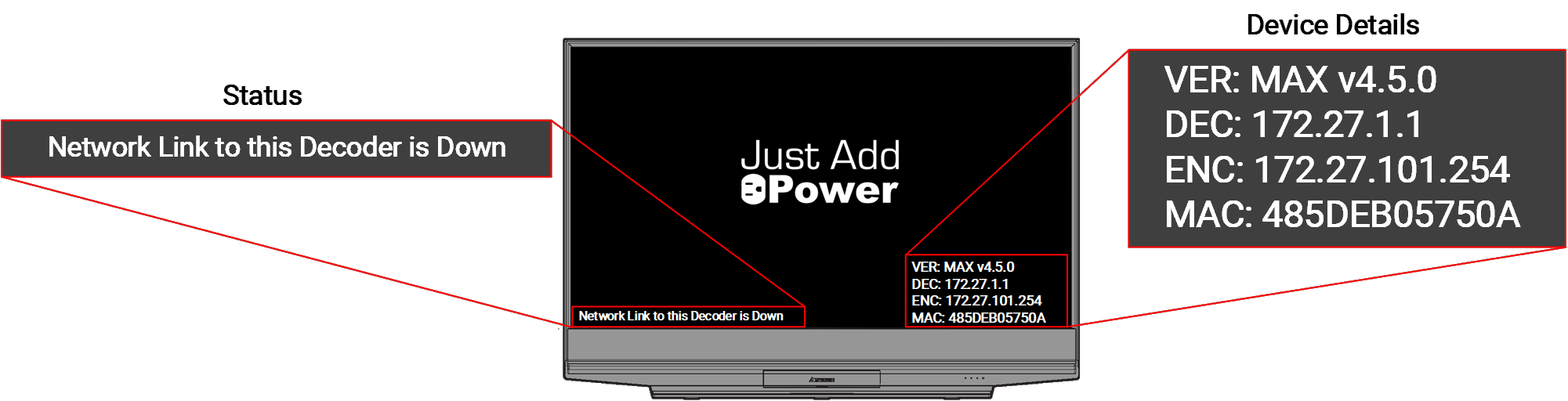
- Reseat the network cable at the Decoder and its connected switch port or intermediate equipment.
- Check whether the switch port is enabled and has an active link. Test with a known-working network cable. If the link returns, inspect the installed cable run, terminations, and intermediate connections.
- If testing another switch port, use one configured for a Decoder in this system.
- If the link remains down, perform a Device Swap Test with a known-working Decoder. Exchange both Decoders between locations to determine whether the problem follows the device or stays with the cable run and switch port.
- After restoring the link, run AMP Gather Details to confirm that the Decoder is discovered with the expected settings. Check the switch port’s negotiated speed.
No video signal from source device
The Decoder reports that video is unavailable from the selected source. Begin at the source and Encoder input while confirming that the expected Encoder is connected.
- Confirm that the source is powered on, awake, and outputting video.
- Reseat the HDMI cable between the source and Encoder. If the message remains, test with a known-working HDMI cable.
- Use AMP Gather Details to check that the expected Encoder is discovered and compare its assignment, IP settings, model, and firmware information with the system documentation. Check its Power and Data LEDs and switch-port link. See Understand Power and Data LED Behavior.
- Confirm that the source outputs a resolution and video format supported by the Encoder. If possible, test the source directly on a display or connect a known-working source to the Encoder.
If the Encoder detects a valid source but this message remains, check its negotiated link speed and the video network path. In a multi-switch system, check links between switches separately from Encoder and Decoder endpoint links. Then continue to Further Connection and Video Checks.
AMP and Firmware Messages
Check whether an operation is underway before restarting, disconnecting, or exchanging a device displaying one of these messages.
Streaming services stopped by AMP
AMP has stopped streaming services on the device during an operation. Check the workflow running in AMP and allow it to finish. Do not power cycle or swap the device while AMP is working on it.
If AMP reports that the operation is complete but the message remains, record the result and affected device. Run Gather Details to check the device’s current information before continuing troubleshooting.
Firmware update started by AMP
AMP has started a firmware update on the device. Monitor its progress in AMP and allow the update and device reboot to complete.
Firmware update in progress: Do not disconnect device power or network connectivity while the update is running.
If AMP reports a failure or the device does not return after the update, record the AMP error and device details. See How to Update Firmware on a Device (Omega, Ultra, and MaxColor Series).
Firmware Updating or User Interrupted
This status appears when firmware is being updated outside AMP or when a user executes commands that disrupt the device’s audio and video services. The message alone does not identify which occurred.
- Determine whether someone is updating the device through its webUI or another method outside AMP. If an update is running, allow it and the subsequent reboot to finish. Do not disconnect device power or network connectivity during the update.
- If no update is running, determine whether a control system, installer, or service tool recently executed commands that interrupted audio and video services.
- If the message remains unexpectedly, record the device model, firmware version if available, update method or commands used, and when the message appeared. Provide those details to Just Add Power Technical Support.
Further Connection and Video Checks
Use these steps when Searching for Encoder..., Encoder Found. Connecting..., or No video signal from source device remains after the checks in its section. Resolve a down network link first, and do not interrupt an active AMP operation or firmware update.
- Switch the affected Decoder to a known-working Encoder, then back to the original Encoder. Note whether it connects to either Encoder, whether video appears, and whether the message changes.
- Check whether another Decoder can connect to the original Encoder. Compare the results to narrow the issue to one Decoder, one Encoder, or a shared network path.
- If the problem remains, power cycle the affected Decoder and allow it to finish starting.
- If the evidence points to one Encoder, check whether other Decoders are using it before power cycling it. Those displays will temporarily lose that source. Confirm that no update or AMP operation is running, then power cycle the Encoder and retest.
- If the issue remains isolated to a device or location, perform a Device Swap Test. Exchange the suspected device and a known-working device of the same type between their two locations. Record whether the problem follows the suspected device or stays at its original location.
What to Record If a Message Persists
- The exact message and how long it remains on screen.
- The affected Decoder and intended Encoder, including their models and firmware versions.
- The Gather Details results and any differences from the system documentation.
- The affected switch ports, their link status, and negotiated speed.
- The results of switching to another Encoder and back, and whether another Decoder can connect to the original Encoder.
- Any AMP operation, firmware update, or commands executed before the message appeared.
- The results of source, cable, power cycle, and device swap tests.
Provide these details when contacting Just Add Power Technical Support.

