




Overview
For a Just Add Power device to function correctly within a system, its firmware must be compatible with the firmware running on the other devices in the installation.
This article explains how to verify the current firmware version, update an individual Omega Series, Ultra Series, or MaxColor Series device using the webUI, or use AMP to perform a system-wide firmware update.
Important: Devices running different firmware families (for example, B2.x.x, B3.x.x, and MaxColor v4.x.x) are not compatible with one another. Always install firmware that matches the existing system unless you are intentionally upgrading the entire installation.
Need to identify the current firmware? Follow How to Identify the Firmware Version of a Device (Omega, Ultra, and MaxColor Series) before downloading or installing firmware.
Before You Begin
- Ensure the device is powered on and accessible on the Just Add Power network.
- Use a wired Ethernet connection. Disable Wi-Fi before performing a firmware update.
- Determine the firmware family currently running on the Just Add Power system.
- Access the device by following How to Access a Just Add Power Device.
- If updating an Encoder on firmware A6.x.x or earlier, disconnect the HDMI source before beginning the firmware update.
Download Firmware
Download the firmware package that matches your product series and the firmware family currently running on the system.
Important: Firmware files are specific to each product series and firmware family. Always install firmware intended for the exact device model and firmware family already running in the system.
Need an older firmware version? Our download pages only include currently supported releases. If your system is running an unsupported firmware family, we recommend upgrading the entire system to the latest supported firmware rather than attempting to match an obsolete release.
Update Firmware
WARNING: Do not interrupt power or network connectivity during a firmware update. Interrupting the update will render the unit inoperable.
Best Practice: Perform firmware updates from a computer connected by wired Ethernet. Disable Wi-Fi before starting the update to ensure all communication occurs over the Just Add Power network.
Update Using the webUI
-
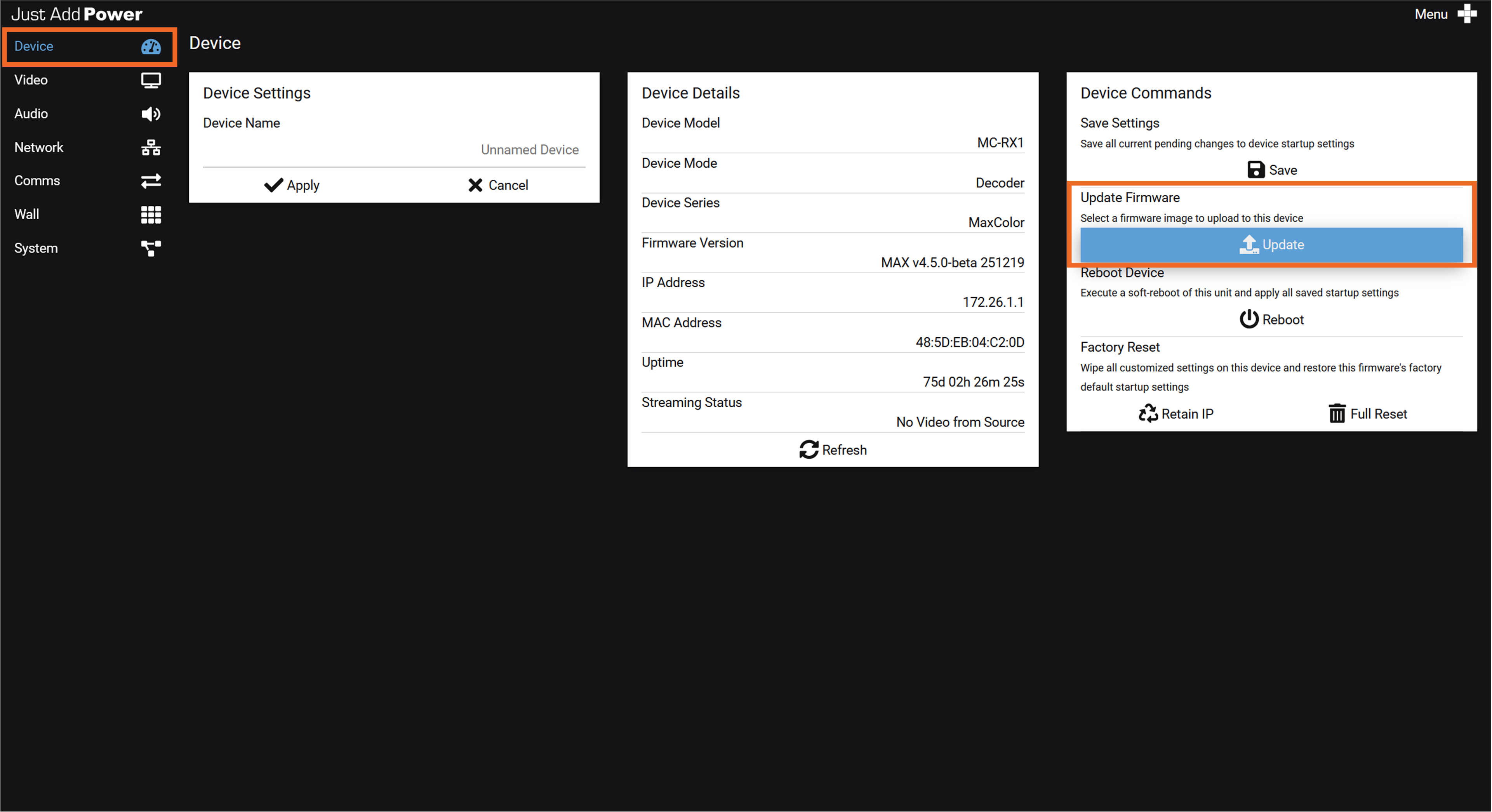
In the Device Commands section, click Update under Update Firmware.
-
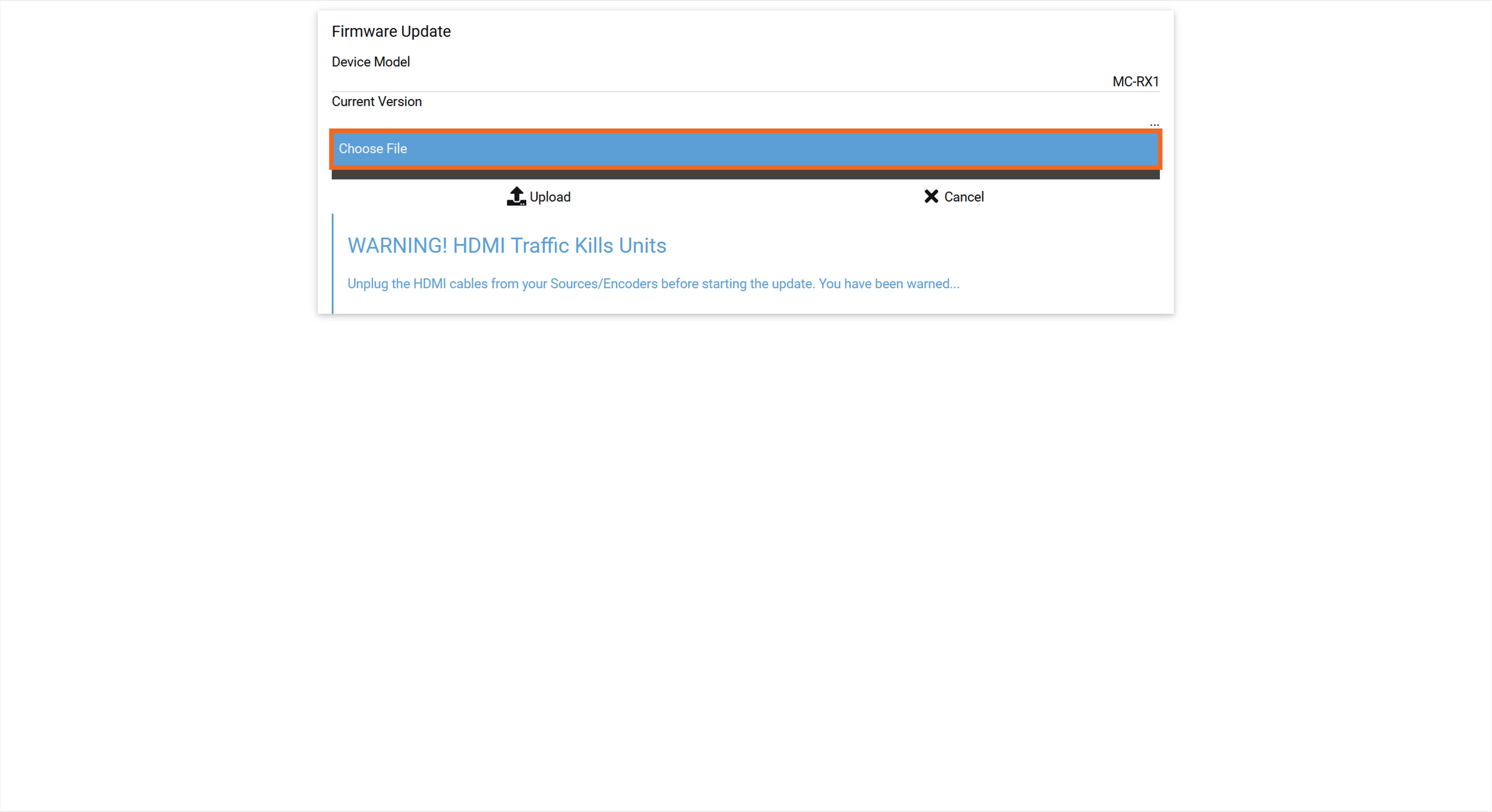
Click Choose File.
-
Browse and select the appropriate
.binfirmware file, then click Open.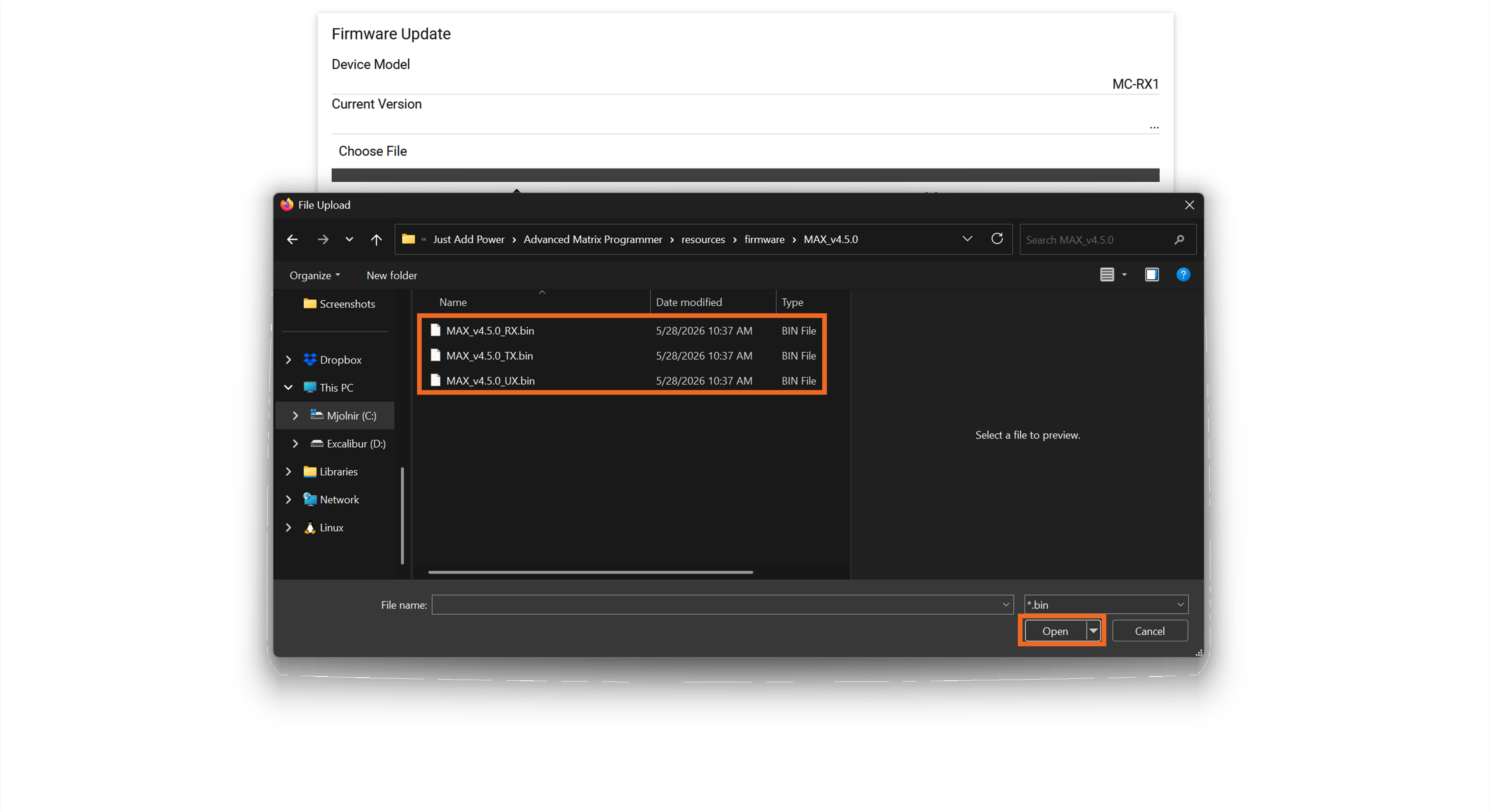
-
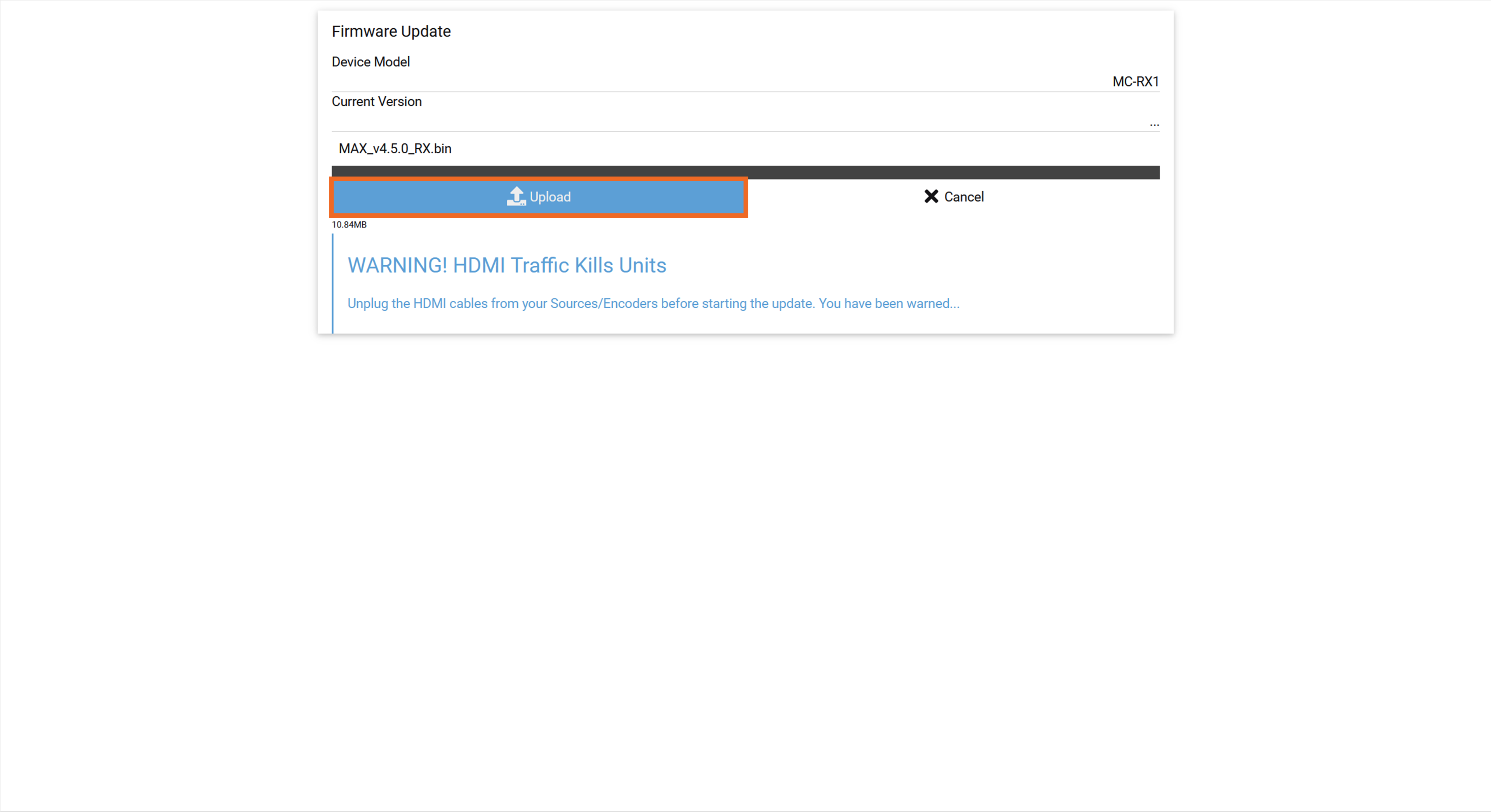
Click Upload to begin the update.
-
Wait for the firmware upload, installation, and automatic reboot to complete.
Do not close the browser or navigate away from the page until the device has finished rebooting.
-
Firmware updates typically complete within 5–10 minutes, depending on the device model and network conditions.
-
If the firmware update is interrupted, the device must be recovered using Debrick.
-
-
Once the device finishes rebooting, verify the new firmware version by following How to Identify the Firmware Version of a Device (Omega, Ultra, and MaxColor Series).
Next Step: Repeat this process for any remaining Just Add Power devices until the entire system has been updated.
Update Using AMP
AMP can perform a system-wide firmware update for established Just Add Power systems that were originally configured using AMP.
Firmware updates are available from the Service section of AMP.
Note: AMP performs coordinated firmware updates across established AMP-configured systems using firmware packages included with the software. It cannot be used to update an individual device or manually upload firmware files.
For a complete walkthrough of the AMP firmware update process, watch the video below.

