



Overview
Omega Series, Ultra Series, and MaxColor Series devices can be assigned a custom device name. Naming devices makes it easier to identify individual Encoders and Decoders when configuring, accessing, or managing a system.
When building a new system with Advanced Matrix Programmer (AMP), device names can be assigned during the Build New workflow. Devices can also be named or renamed using the webUI, CLI, or HTTP API.
| Method | Applicable Series | Recommended Use |
|---|---|---|
| AMP | Omega, Ultra, and MaxColor Series | Naming devices while configuring a new AMP system |
| webUI | Omega, Ultra, and MaxColor Series | Manual configuration of an individual device |
| CLI | Omega, Ultra, and MaxColor Series | Command-line configuration using Telnet or the RS232 debug port |
| HTTP API | Omega, Ultra, and MaxColor Series | Automation, scripting, and control-system integration |
Name Devices Using AMP
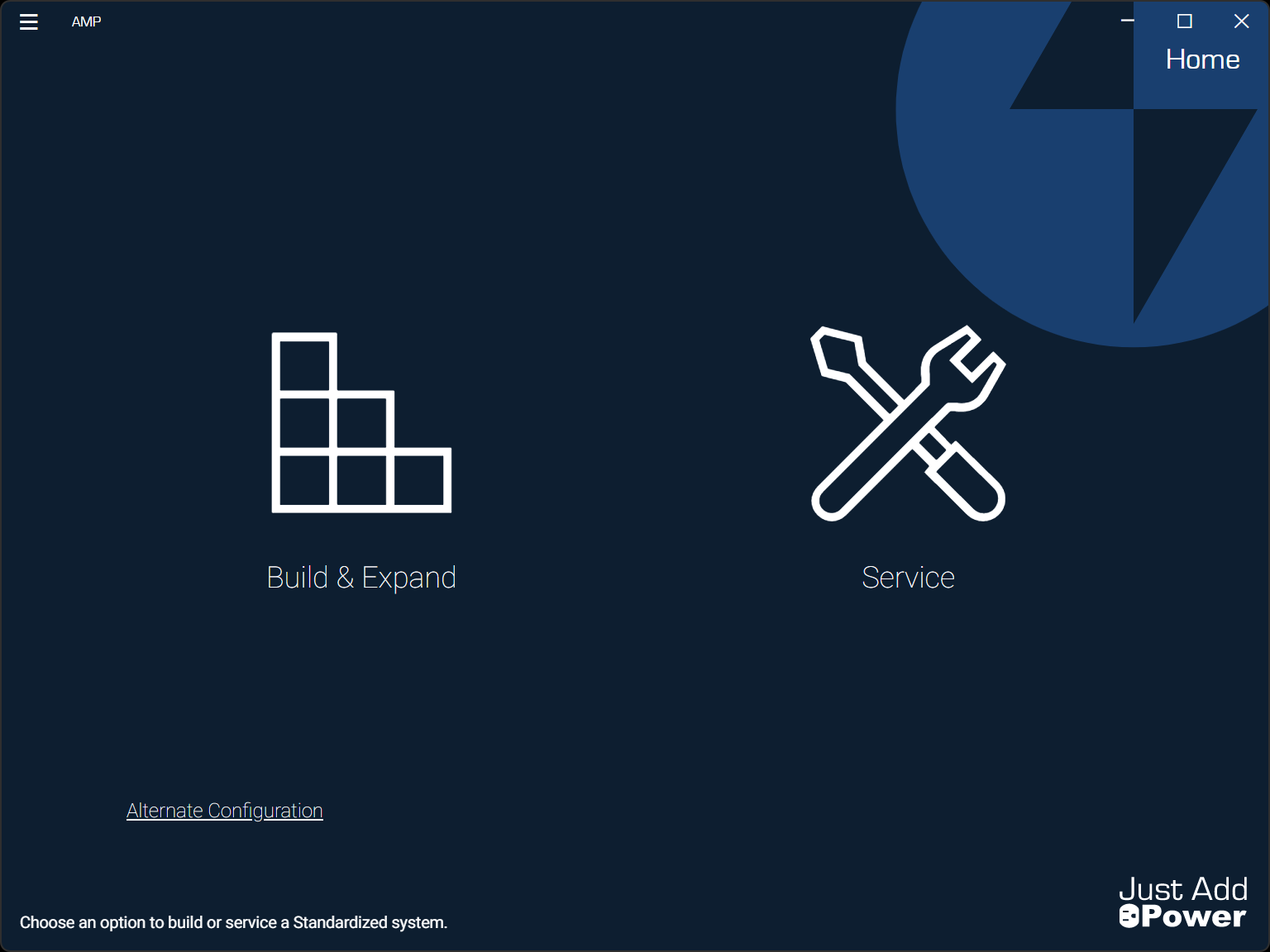
During the Build New workflow, AMP provides the option to assign a name to each Encoder and Decoder. Naming devices during the initial system configuration helps identify them throughout the AMP project.
For the complete system-configuration workflow, see Download AMP and Configure an Omega, Ultra, and MaxColor Series System.
Set the Device Name Using the webUI
-
Open the device webUI.
See How to Open the webUI of a Device (Omega, Ultra, and MaxColor Series) for access instructions.
-
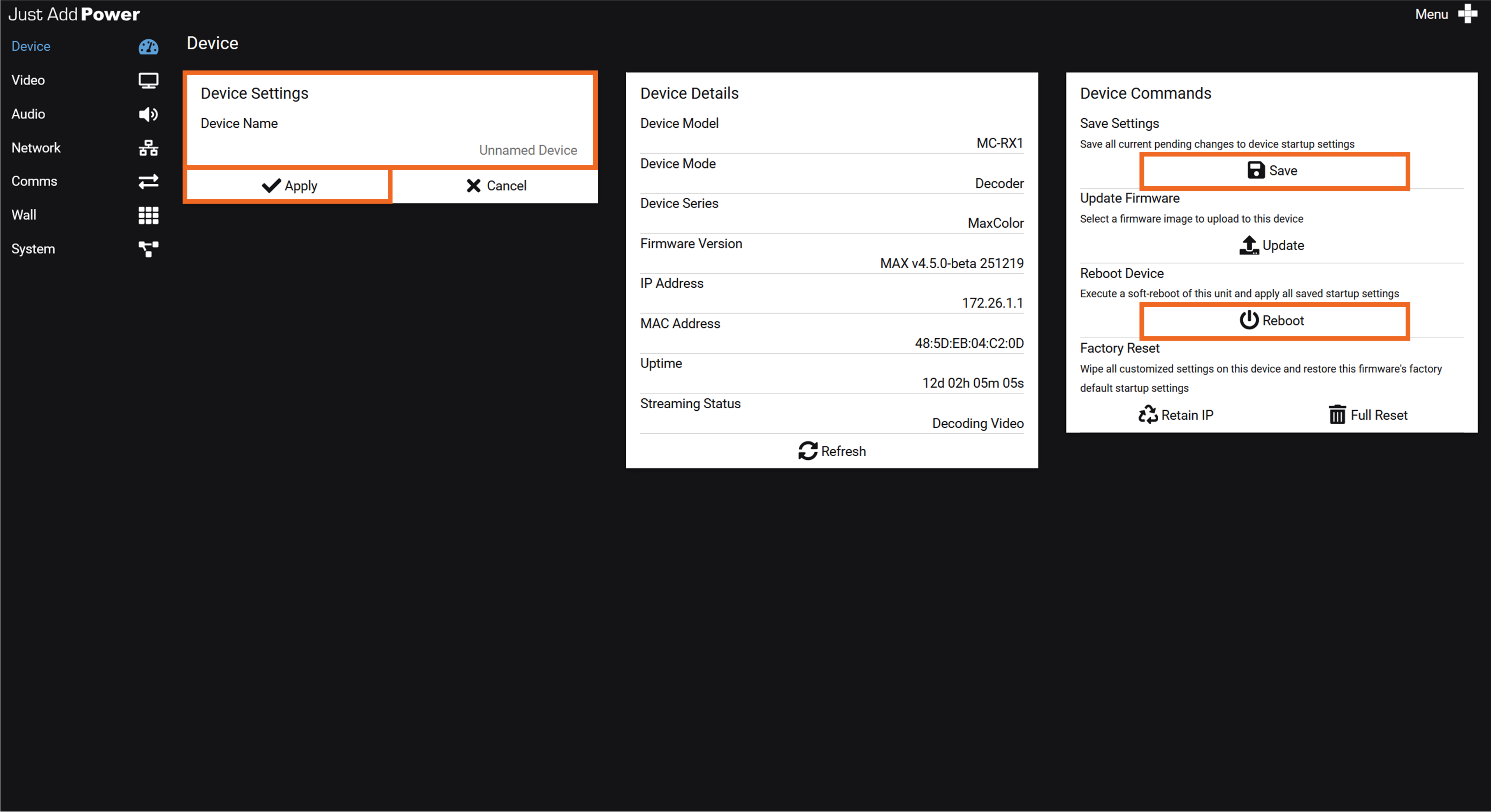
Select Device from the navigation menu.
-
In the Device Settings card, select the current Device Name.
-
Enter the name to assign to the device, and then select Apply.
-
In the Device Commands card, select Save to save the pending change.
-
Select Reboot to restart the device and apply the saved name.
Important: Rebooting the device temporarily interrupts its operation.
Set the Device Name Using the CLI
-
Access the device CLI using Telnet or the RS232 debug port.
See How to Telnet to a Device (Omega, Ultra, and MaxColor Series) for Telnet instructions.
-
Enter the following command, replacing
DEVICE_NAMEwith the name to assign to the device:astparam s webname "DEVICE_NAME";astparam save;sleep 1;reboot -
Allow the device to reboot, and then refresh or reopen the webUI.
Important: This command immediately reboots the device and temporarily interrupts its operation.
Note: Enclose names containing spaces in quotation marks.
For more information about startup settings, see CLI Settings for Omega & Ultra Series Devices.
Example
The following command assigns the device name Master Bedroom:
astparam s webname "Master Bedroom";astparam save;sleep 1;rebootHTTP API
Device names can also be viewed and configured using the justOS HTTP API. See justOS HTTP API Overview (Omega, Ultra, and MaxColor Series) for firmware requirements, access instructions, and complete API documentation.

