


How to Use Image Pull via MJPEG Network Video Stream
Overview
MaxColor Series Encoders and Decoders generate an MJPEG video stream that can be viewed in a web browser or displayed within a control system interface. The stream provides motion video without audio at resolutions up to 1280 × 720 and frame rates up to 30 fps.
The MJPEG service provides two viewing options:
- Video Stream: A continuously updating MJPEG video stream.
- Snapshot: A single JPEG frame captured from the MJPEG service.
Applies To: MaxColor Series Encoders and Decoders.
Related Feature: This article covers the MJPEG service, including its continuous video stream and single-frame snapshot endpoint. For the separately configurable Image Pull snapshot available at http://[device-ip]/pull.jpg, refer to How to Use Image Pull.
Before You Begin
- Identify the IP address of the MaxColor Series Encoder or Decoder.
- Confirm that your PC or control system has network access to the device.
- Confirm that the device is running MAX v3.5.2 or later.
If you need help connecting to the device, refer to How to Access a Device.
View in the webUI
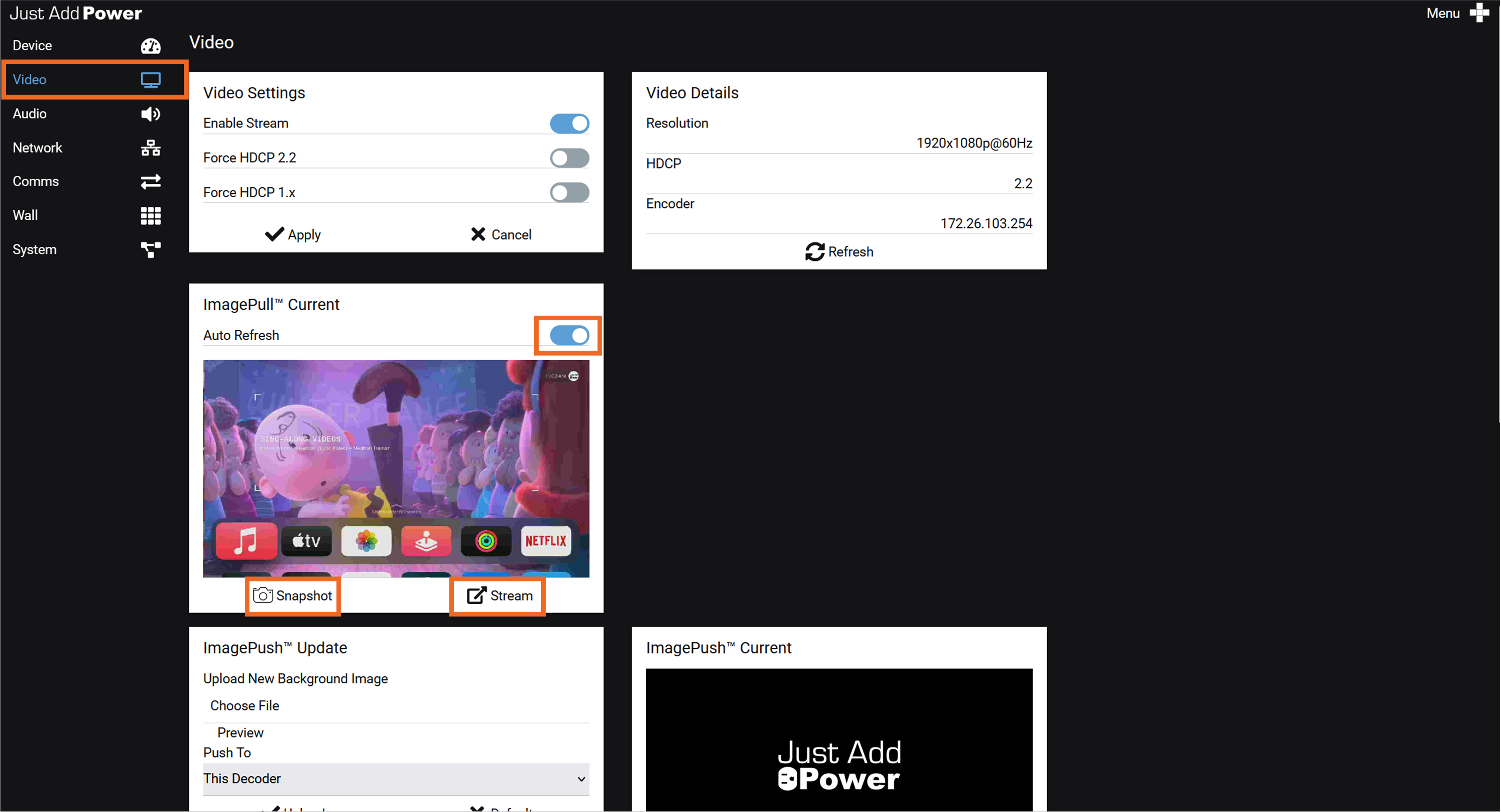
- Open the webUI of the MaxColor Series Encoder or Decoder.
- Select the Video tab.
- Locate the ImagePull Current card.
- Enable Auto Refresh to update the embedded preview automatically.
Two additional viewing options are available below the preview:
- Select Snapshot to open a single JPEG frame from the MJPEG service.
- Select Stream to open the MJPEG video stream.
Note: The ImagePull Current card provides viewing controls but does not provide MJPEG configuration controls. Use Telnet or the CLI in the webUI to change the stream settings.
Access the Video Stream
Enter the following address into a web browser or control system. Replace [device-ip] with the IP address of the MaxColor Series Encoder or Decoder:
http://[device-ip]:8080/?action=streamFor example, the MJPEG video stream from a Decoder with the IP address 172.27.1.1 is available at:
http://172.27.1.1:8080/?action=streamNote: The MJPEG video stream does not include audio.
Access a Snapshot from the MJPEG Service
The MJPEG service can return a single JPEG frame instead of a continuously updating video stream. This endpoint uses the MJPEG service settings and is separate from the configurable pull.jpg Image Pull snapshot.
http://[device-ip]:8080/?action=snapshotFor example, the MJPEG snapshot from a Decoder with the IP address 172.27.1.1 is available at:
http://172.27.1.1:8080/?action=snapshotNote: This endpoint captures a single frame from the MJPEG service. It is separate from the configurable Image Pull snapshot available at http://[device-ip]/pull.jpg.
Default Settings
| Setting | Default |
|---|---|
| Enabled | Yes |
| Resolution | 640 × 360 |
| Frame Rate | 30 fps |
| Maximum Bandwidth | 5 Mbps |
| Audio | None |
| Network Port | 8080 |
Configure the MJPEG Stream
MJPEG stream settings can be changed through Telnet or the CLI in the device webUI. Native configuration controls are not available on the Video tab.
The following command applies the default stream settings:
astparam s ss_stream_option 640,360,30,5000,0,10
astparam save
sleep 1
reboot
Use the following syntax to change the resolution and frame rate:
astparam s ss_stream_option {$WIDTH},{$HEIGHT},{$FPS},5000,0,10
astparam save
sleep 1
reboot| Parameter | Default | Maximum |
|---|---|---|
{$WIDTH} |
640 |
1280 |
{$HEIGHT} |
360 |
720 |
{$FPS} |
30 |
30 |
Important: Keep the remaining values of 5000,0,10 unchanged. Test any resolution or frame-rate changes to confirm that they do not interfere with HDMI video performance.
Examples
Configure the maximum supported resolution and frame rate:
astparam s ss_stream_option 1280,720,30,5000,0,10
astparam save
sleep 1
reboot
Configure a lower-bandwidth 320 × 180 stream at 10 fps:
astparam s ss_stream_option 320,180,10,5000,0,10
astparam save
sleep 1
reboot
Note: The maximum MJPEG stream resolution is 1280 × 720. The 1920 × 1080 option available to the separate pull.jpg Image Pull snapshot does not apply to the MJPEG service.
Troubleshooting
The MJPEG stream can help determine where a video issue occurs within a MaxColor Series system. Begin by viewing the stream from the Encoder, then compare it with the stream from the Decoder.
Encoder
On an Encoder, the MJPEG stream captures the HDMI video after it enters the Encoder and before it is transmitted over the network.
- If the Encoder stream is clean, the source and Encoder HDMI input path are working. Continue troubleshooting the network, Decoder, and display side.
- If the Encoder stream shows the same issue as the display, troubleshoot the source, HDMI cable, EDID, HDCP, and Encoder HDMI input before evaluating the network or Decoder.
Decoder
Decoder stream behavior depends on whether an active HDMI display is connected.
- When an active display is connected, the stream represents the HDMI output being sent to the display. It will generally show the same video as the display and cannot independently confirm the condition of the incoming network video.
- When no active HDMI connection is present, the stream represents the video received from the network.
To use the Decoder stream to evaluate the network video:
- Disconnect the HDMI cable from the Decoder, or disconnect power from the display so that no active HDMI connection is present.
- Reboot the Decoder while no active HDMI connection is present.
- View the MJPEG stream from the Decoder.
- If the Decoder stream is clean, the network video is reaching the Decoder correctly. Troubleshoot the Decoder HDMI output, HDMI cable, display input, EDID, and HDCP.
- If the Decoder stream shows the issue, compare it with the Encoder stream. A clean Encoder stream and incorrect Decoder stream indicate an issue within the network video path or Decoder processing.
Important: Disconnecting HDMI after the Decoder has booted may leave the stream in its previous operating state. Reboot the Decoder with no active HDMI connection before evaluating the network video.

