



Overview
This article outlines the available methods to factory default a Just Add Power Omega (OM), Ultra (UL), and MaxColor (MC) Series device.
Minimum Supported Firmware:
Omega (OM) and Ultra (UL) Series: B1.1.0 or newer
MaxColor (MC) Series: MAX v3.5.2 or newer
Note: Omega (OM) and Ultra (UL) Series devices operating in 2G Mode within a 2G Series system follow a different factory default process. Refer to: Factory Default for 2G Series Systems.
Warning: Performing a factory default on a device that is part of an AMP Standardized system will remove its configuration and may disrupt system operation. After resetting, the device must be reconfigured or re-added to the system.
Choosing a Factory Default Method
Use the method that best matches how the device can be accessed:
webUI: Use this method when the device is accessible on the network.
Telnet: Use this method when command-line access is preferred or the webUI is not accessible.
Debug Cable: Use this method when the device cannot be reached over the network.
Factory Default Details
Factory Default Network Settings:
IP Mode: Auto IP
IP Address: 169.254.x.x /16
Default Gateway: None
All other settings revert to model- and firmware-specific defaults.
Factory Default via webUI
-
Log in to the device webUI. For instructions on accessing the webUI locally or within an established system, refer to: How to Access the webUI (Omega, Ultra, and MaxColor Series).
-
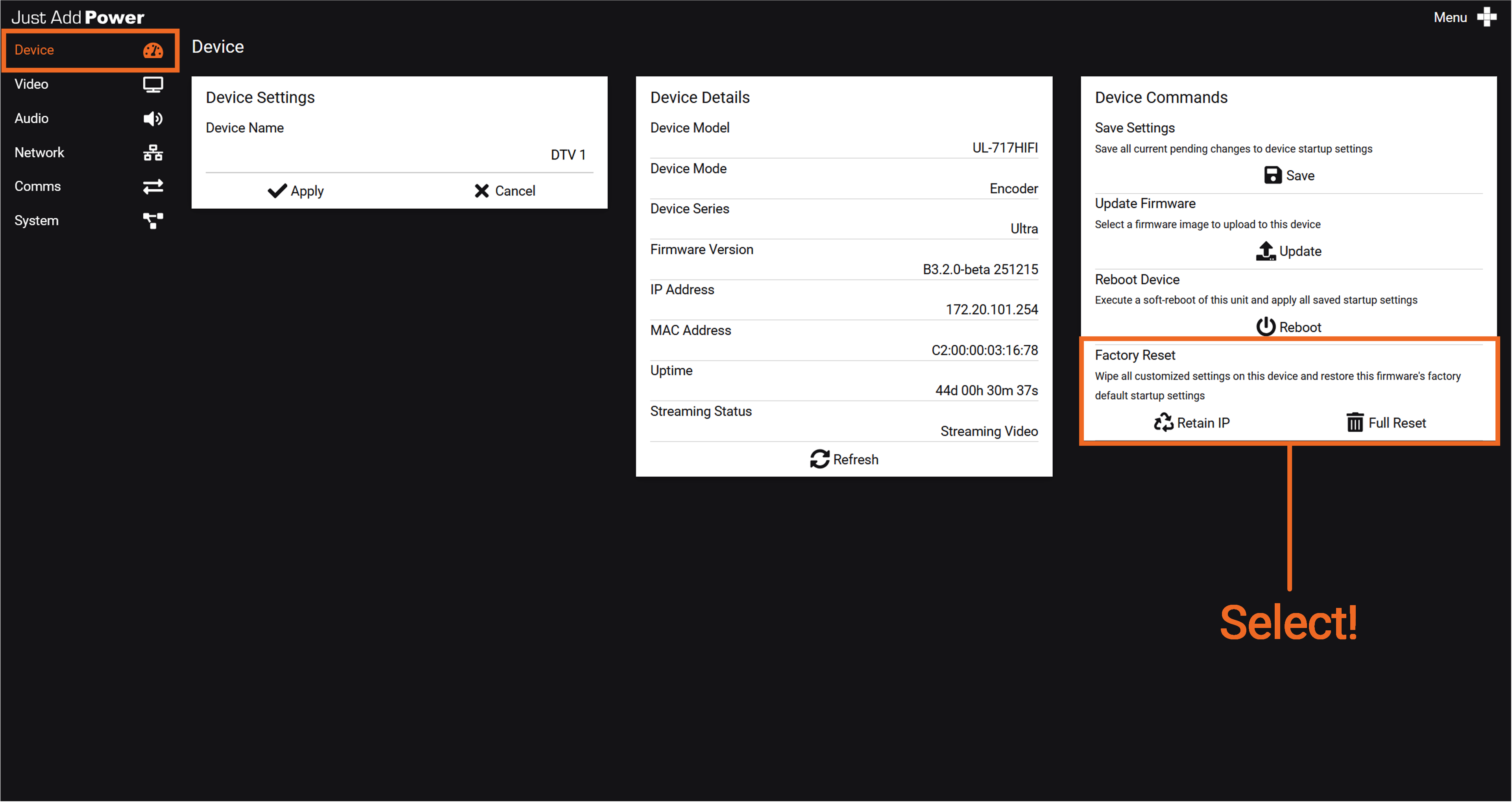
Navigate to the Device tab and locate the Device Commands section.
-
Select one of the following options:
Full Reset: Resets all settings, including the current IP address and network configuration.
Retain IP: Resets all settings while preserving the current IP address and network configuration.
Type
yesin the confirmation prompt.The device will reboot and return to its factory default state.
Factory Default via Telnet
-
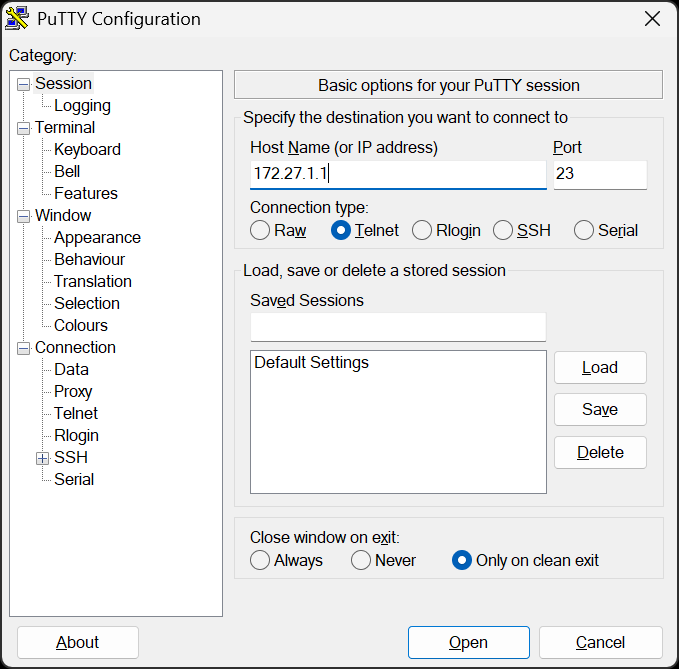
Open a Telnet session to the device (port 23) using a terminal emulator such as PuTTY. For instructions on accessing the device on the network, refer to: How to Access a Device (Omega, Ultra, and MaxColor Series).
-
At the command prompt
/usr/local/bin/ #, run:reset_to_default.sh
-
Optional (Retain IP):
-
To retain the current IP settings, run:
reset_to_default.sh -ip This option may not be supported on all firmware versions.
-
Reboot the device, run:
rebootThe device will reboot and return to its factory default state.
Factory Default via Debug Cable
-
Connect a Just Add Power Debug Cable to the device using a USB-to-serial adapter.

-
Open a terminal emulator such as PuTTY with the following settings: 115200, 8-N-1.

-
At the command prompt
/ #, run:reset_to_default.sh
-
Optional (Retain IP):
-
To retain the current IP settings, run:
reset_to_default.sh -ip This option may not be supported on all firmware versions.
-
Reboot the device, run:
rebootThe device will reboot and return to its factory default state.

